In my never ending quest to be more efficient and simplify my teaching life, I’m always on the look out for wasted time during my woefully inadequate planning time. I’ve refined this hack over the past few years and now I’m ready to share it with you.
First though, here’s why I needed my Lesson Plans to work harder:
- Where on earth is it?! I love creating materials and writing plans BUT I was wasting so much time looking for something I’d previously created. Did I title it in Spanish? English? Where is it?!? I’d search and scour my Google Drive, and often times just give up and start from scratch, recreating whatever I created the year before but couldn’t locate the dang file. Beyond frustrating!!
- Absent kids and their work! “Did we do anything last class?” “I’m going to Hawaii tomorrow, can I get the work I’ll miss?” Ug, I’ve tried a lot of systems for make up work but all of them created more work for me. I needed something new, that streamlined informing kids without requiring extra steps from me.
- Google Classroom: the ultimate time drain! Posting stuff to Google Classroom was taking far more time than I’d like. Whenever I wanted to share a Flippity Manipulative with them, or a sub plan or a link, I’d create a post, cluttering up their stream and making it hard to find what I wanted them to open. And don’t even get me started about how infuriating it is when you post something to multiple classes, but you have to go back and edit each one individually because you made a mistake. Good grief, what a colossal waste of time! You can do better, Google!
So…with these three concerns in mind, I re-worked my Lesson Plan document to address all three. I’m very happy to report it’s make life easier for me AND the Little Darlings!
The entire year of Spanish 2’s Lesson Plans are in ONE document. Gone are the days of a different doc for each unit. Each period has a block, and as I add in new classes, I add them to the top of the document, so when I open the plan, the current day’s plan is right on top, ready to go. And when students open the document to check what they’ve missed, the most recent plan is the one they’ll see first (More on that later!)
Here’s a peak of last week’s Spanish 2 plans:
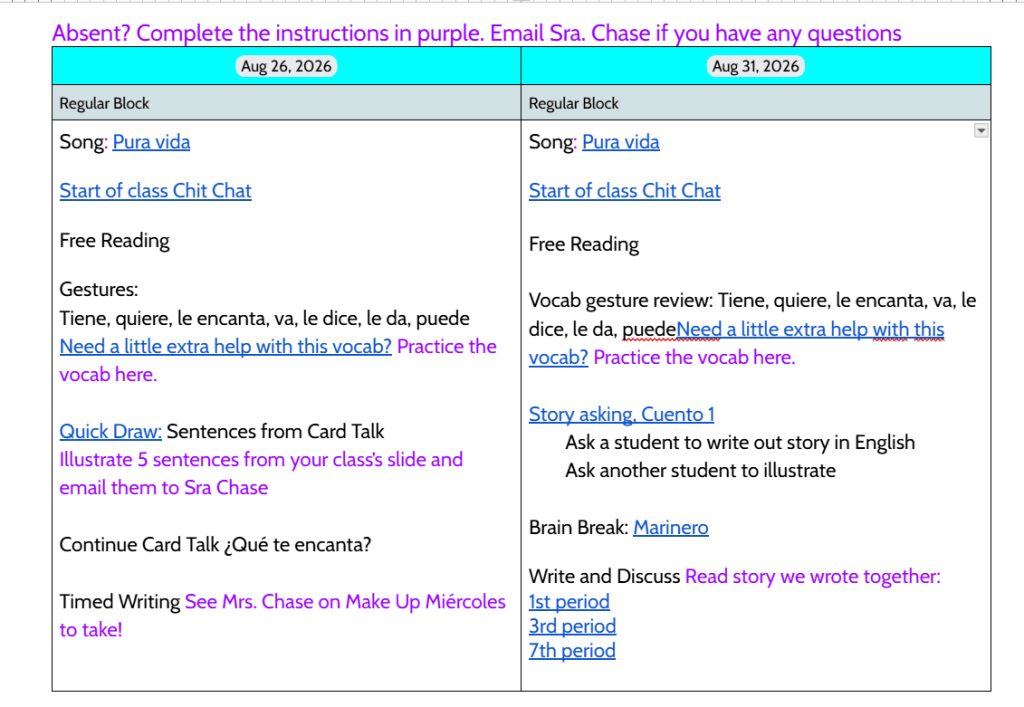
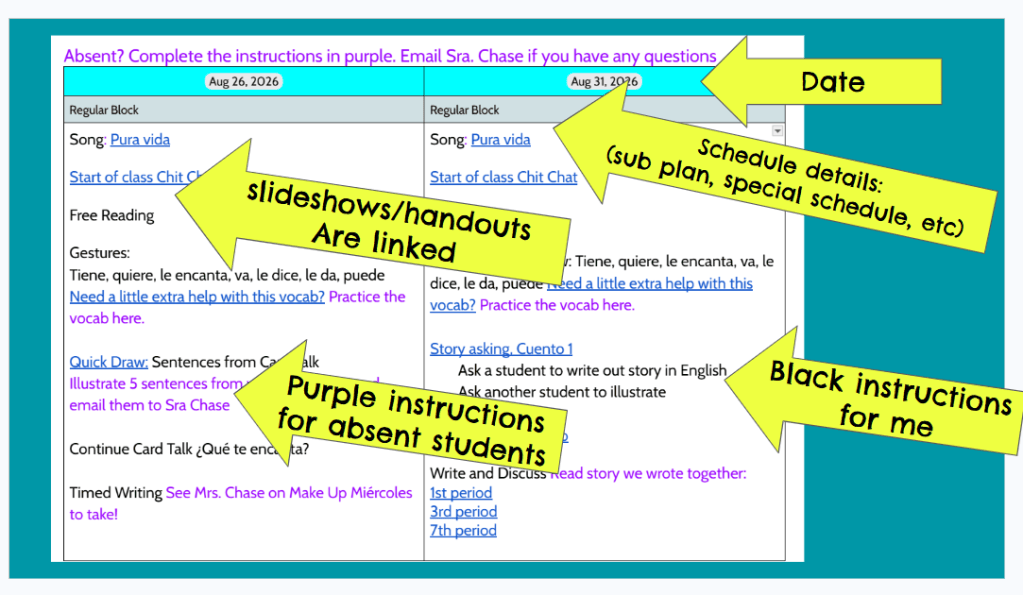
First of all, I use a Google Doc that I change into landscape view, so the boxes are a bit wider. Most of my classes are block classes that I see every other day, so I set up two boxes side by side, to cover 2 class periods. I put in the date at the top and schedule details below it. That’s where I note things like a Pep Rally or an Early Out Day with shortened classes, or a Sub Plan.
I link EVERYTHING into the subplan, and I mean EVERYTHING! This makes it easy for me to open the plan before class starts, and open up what we’ll need during the lesson.
Every class, students enter to the song we’re learning, so the YouTube video is linked first. (YouTube Tip: Open the video, as the song is playing, right click on the video and select “loop”. As soon as the song is finished it will start over again. )
Every slideshow I’ll need during class is linked. All handouts, exit tickets, quizzes, videos, websites, EVERYTHING I use for that day is linked (so I have all my materials ready to go AND they’re easy to find next year!). If it’s something students will access, I update the sharing settings to “Anyone will the link can view”…if it’s something I don’t want them to see, like a quiz or Celebration of Knowledge, I still link it, but without adjusting the sharing settings. They can click on it, but won’t see anything.
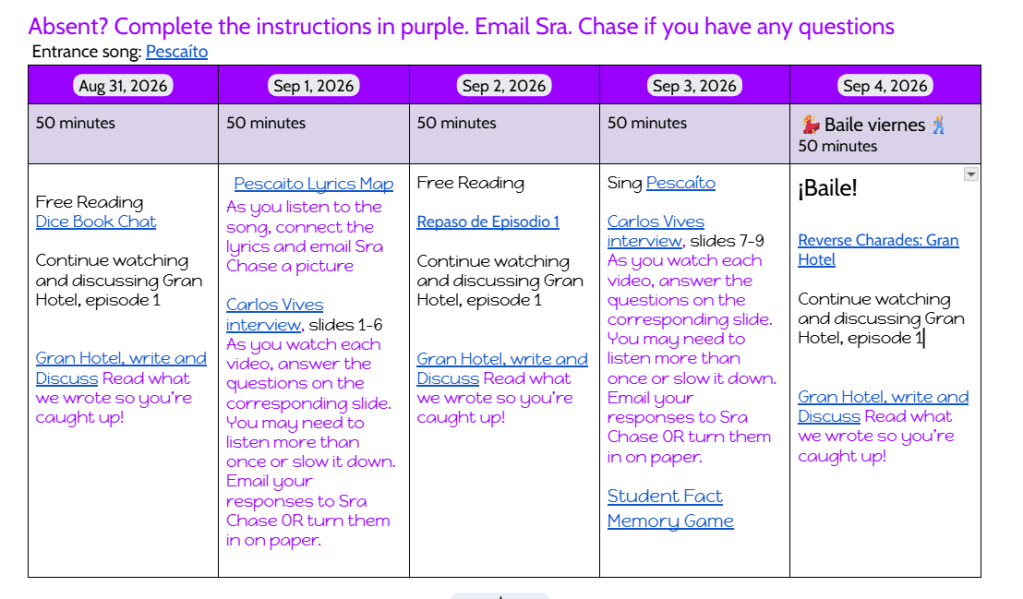
The plans are color coded: the black instructions are for me…reminders of what to do during the lesson. Students don’t need to worry about them. The purple instructions are for absent students.
I tell them if they’re in class with me, they don’t need to do anything, but if they’re absent, they should follow the purple instructions. Do I give them a grade for completing all the purple instructions? Heck no! But it gives those super motivated types some Spanish to do at home. I only grade the things that everyone would be getting a grade for anyways, and for those, I’m sure to include purple instructions for absent kids, stuff like, “Come in during Make Up Miércoles to take care of your August Quick Write” or “watch this video (that I record during class) and take this Lightning Fast Google Form Quiz” or “Do this Venn Diagram and send a screenshot to Sra. Chase”
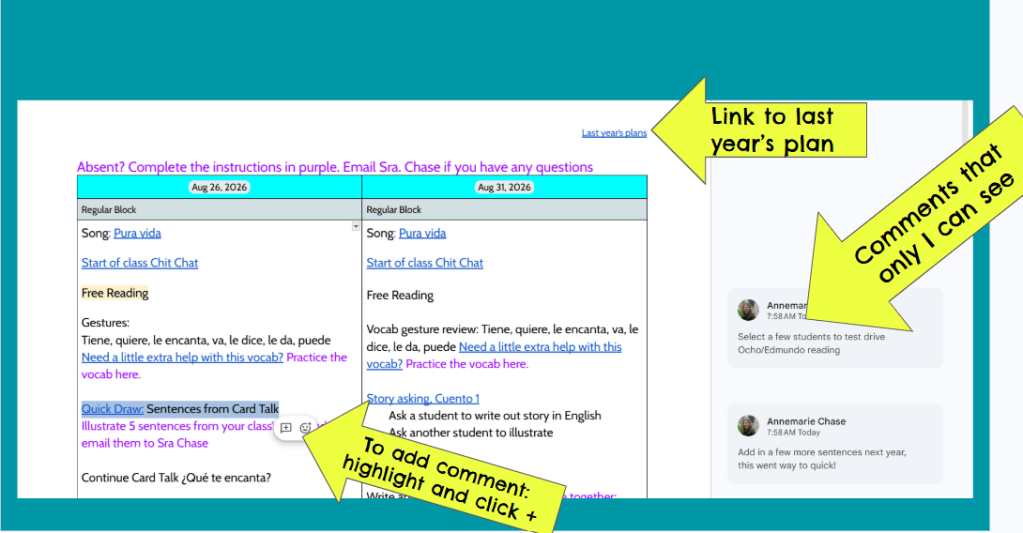
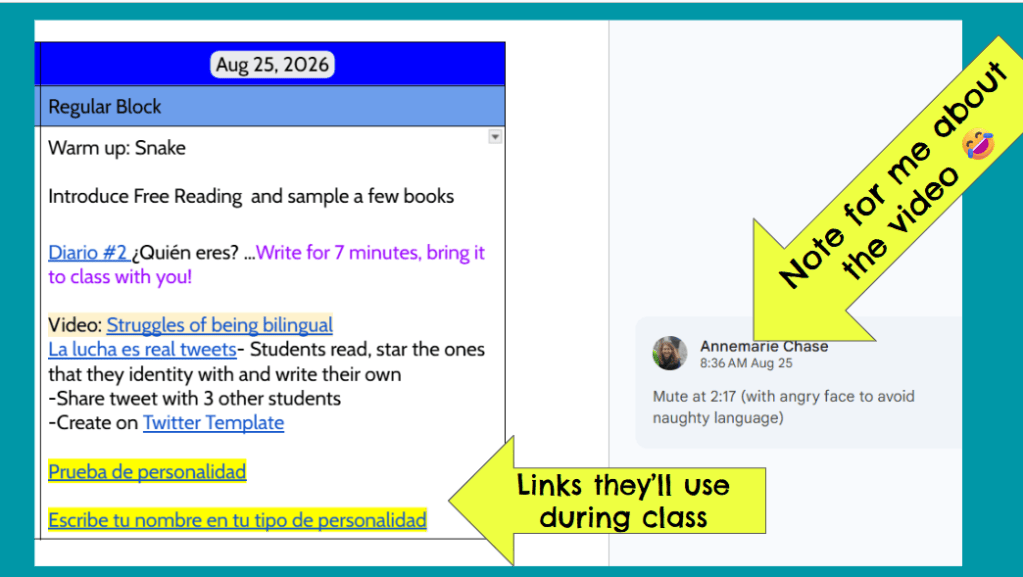
There are a few more hidden things that you wouldn’t notice at first glance. If I want to include details that students can’t see, I insert a comment. It shows up in the columns, where I can see it while planning, but no one else can see it. That’s where I jot notes about changes to make for next year, or if So and So needs to go to Speech Therapy at 10:25 or ideas for upcoming lessons.
In the header of the doc (so it’s viewable on every page ), I link Last Year’s Lesson Plans and any Unit Materials (like a Huellas unit I’m using in Sp 4 or something from TPT I’m digging into with my Heritage Little Darlings). I like that link at the top of the doc, so it’s easy for me to open as I’m planning. (Just one click to open= SAVED TIME (instead of looking for last year’s plans!) I have these docs set to private, so the curious Little Darlings can’t see it.
If there’s a link I will need students to access during class, I link it right in the plan, instead of creating a post in Google Classroom. It saves so much time (see note about the pain in the bum that Google Classroom is) AND it trains students to go to the lesson plan to find everything important. To make life even easier, I highlight in yellow the links we’ll open and use in class.
Here’s last week’s Heritage lesson:
Since I see my Spanish 4s everyday, I set up their plan a bit differently, but it has all the same elements:
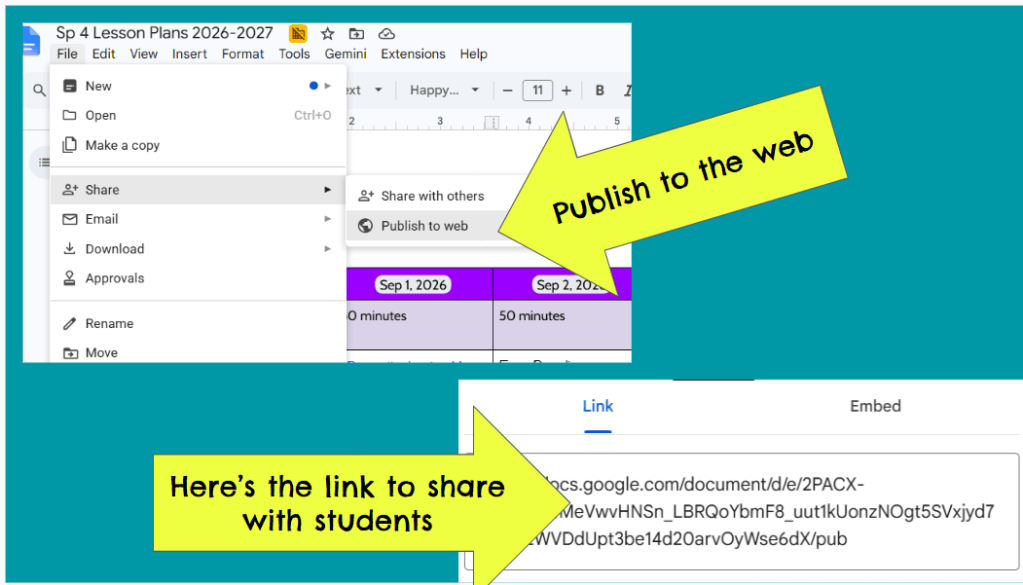
To share this magical doc with students:
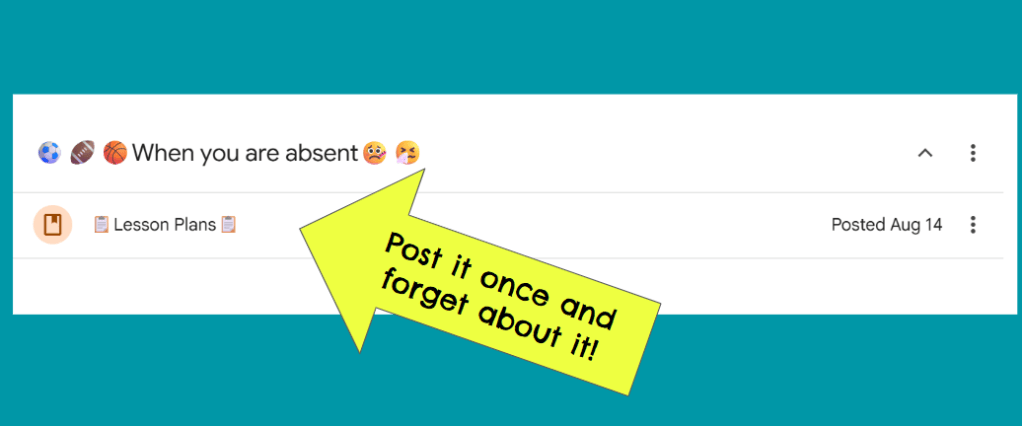
You’ll want to “publish it to the web”, so that when you add to your plans, you don’t need to do anything else. It will automatically update for students, so you can post it once and forget about it!
I post it in Google Classroom as “Material”, move it to the top of Google Classroom, and train students that the Lesson Plan is where they’ll look for make up work and resources for class. I try to keep Google Classroom pretty slim…I prefer to post everything I can into their Lesson Plan. (There are exceptions, namely things I want students to turn in through Google Classroom. If they’re going to turn it into Google Classroom, like a slideshow, for example, or a recording, I create an assignment in GC so that all the responses are together.)
That’s it. That’s how I’m lesson planning and it’s working for me. If you’re like, there’s no way that would work for me, you’re definitely right! But the principal here is NOT “you should lesson plan like Sra Chase. The lesson is: Ask yourself where are things clunky? What’s taking longer than it should? What system could I put in place to streamline and simplify? That’s where the magic is: when you identify what isn’t working, think critically about the problem and try a few things until you crack the code. That’s where the magic is. 🎩🪄✨
On a personal note, my nieces are the cutest and my baby niece is competing for Baby of the Year. We’d be ever so appreciative of a vote for Baby Camryn 🙂 Thanks, friends!!


As always, you have such amazing (ly simple) ideas that I had never thought of! Thank you for sharing them! Quick question…..have you done away with the Running Assignments list in your MegaDesk since updating your lesson plans and instructions for absent students like this?
LikeLike
Hi Lauren and thank you!!
I’m still doing the Running Assignment list but with a change. I just copy and paste exactly what’s listed in the lesson plan into the Assignment List, but I don’t share that with students any more. I figured out that in my grade program (infinite campus) I can copy and paste the info from the Running Assignment List into the assignment details. So now when a kid sees a missing assignment, he can click the assignment and see the instructions for making it up. (Fewer steps for them and easier to make up missing work, theoretically 😂)
LikeLike
And you hit all of my frustration nails on the head … I had used a similar concept, then left it. but I am reinspired to take your next level additions and give it another try! Muchísimas gracias, AnneMarie!
LikeLiked by 1 person